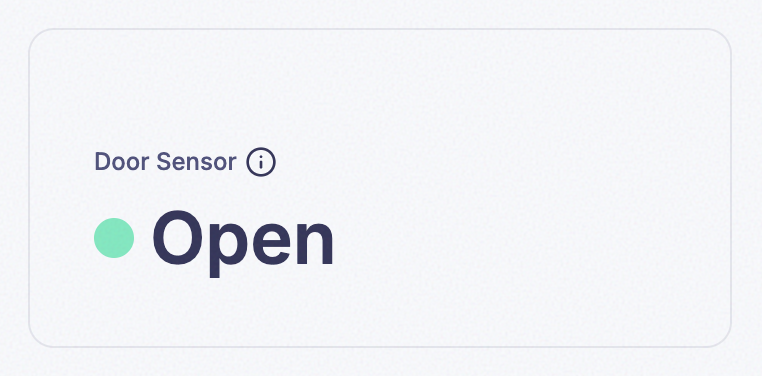
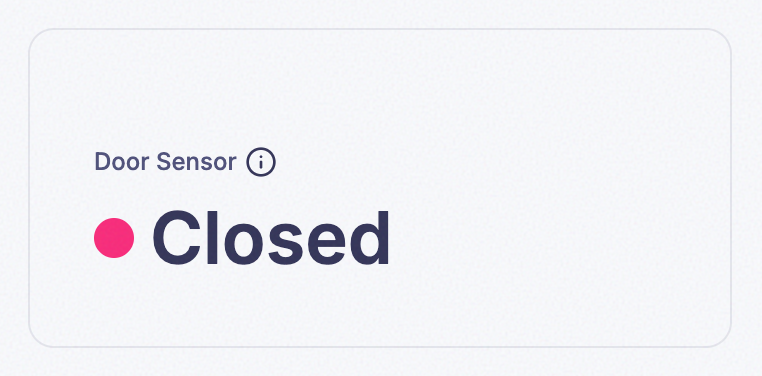
7. Boolean Widget
Displays a true/false field as custom text — a Single Value widget purpose-built for on/off state, with no Aggregate or Time Range to configure. You could model a two-value field with a State widget instead, but Boolean skips the Minimum/Maximum Value and threshold setup entirely — for a field that’s only ever true or false, there’s no scale to define, just the two labels.
- Examples:
- Displaying whether a specific machine in a bundle is “On” or “Off”.
- Showing if a safety switch is currently “Engaged” or “Disengaged”.
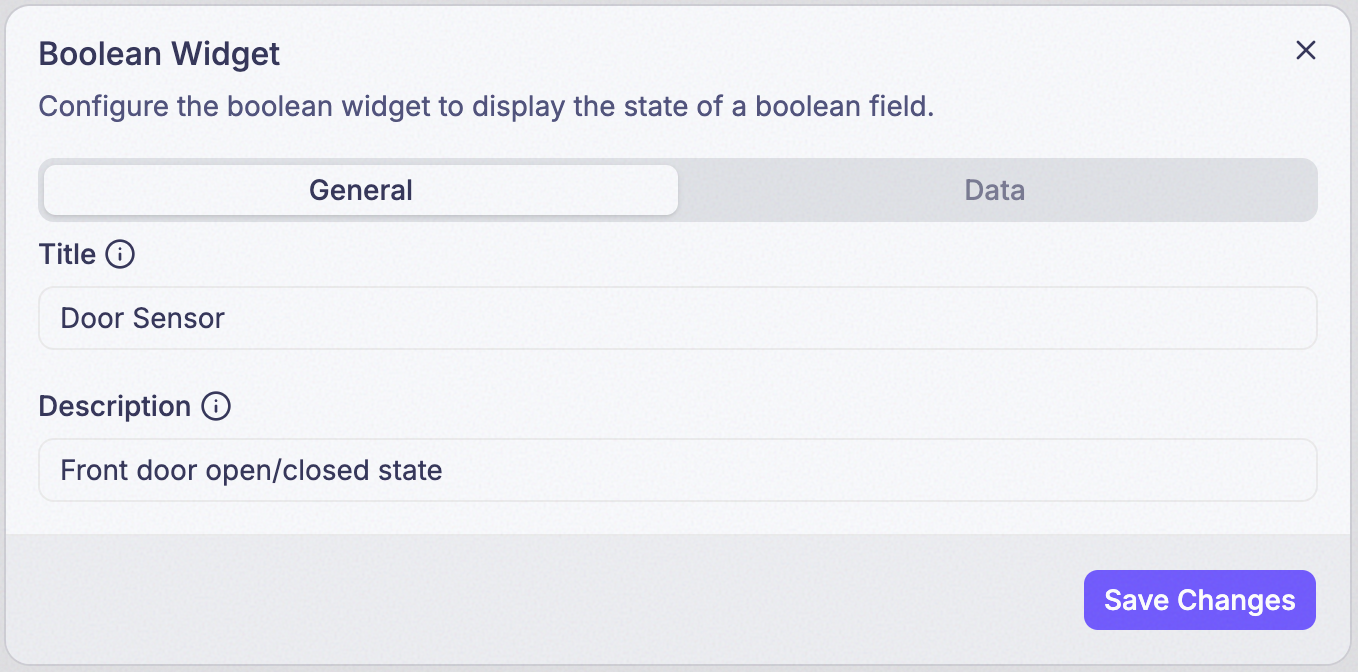
Step 1: Set Title and Description
Title is what’s actually displayed as the widget’s heading. Description isn’t shown on the card at all — it only appears in a tooltip when someone hovers the info icon (ⓘ) next to the title.
Step 2: Add the Field
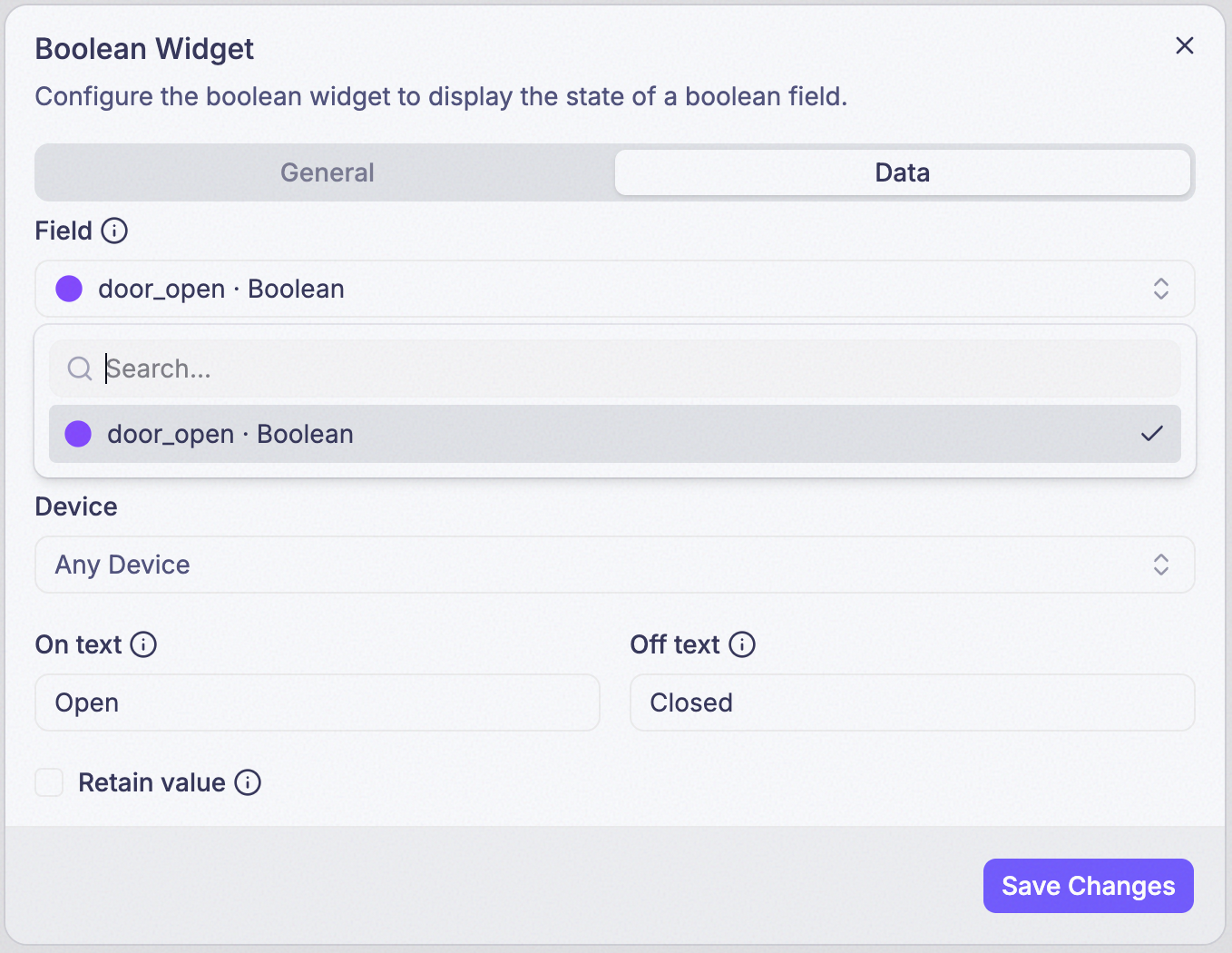
Only boolean fields can be picked here (e.g., is_running).
Step 3: Choose a Bundle (optional)
Points the widget at every device in a bundle instead of one device. Leave it blank to pick a single device instead, in the next step.
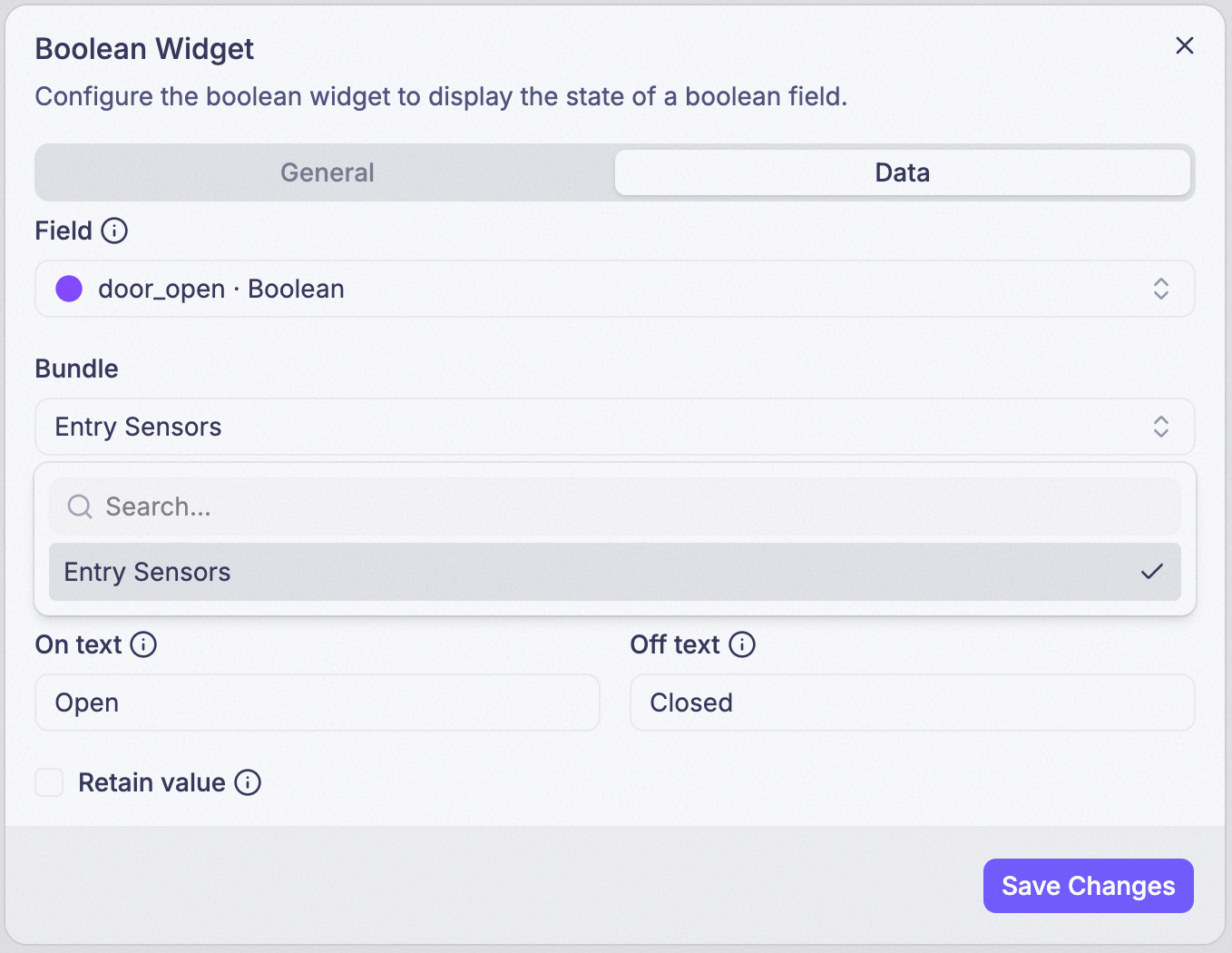
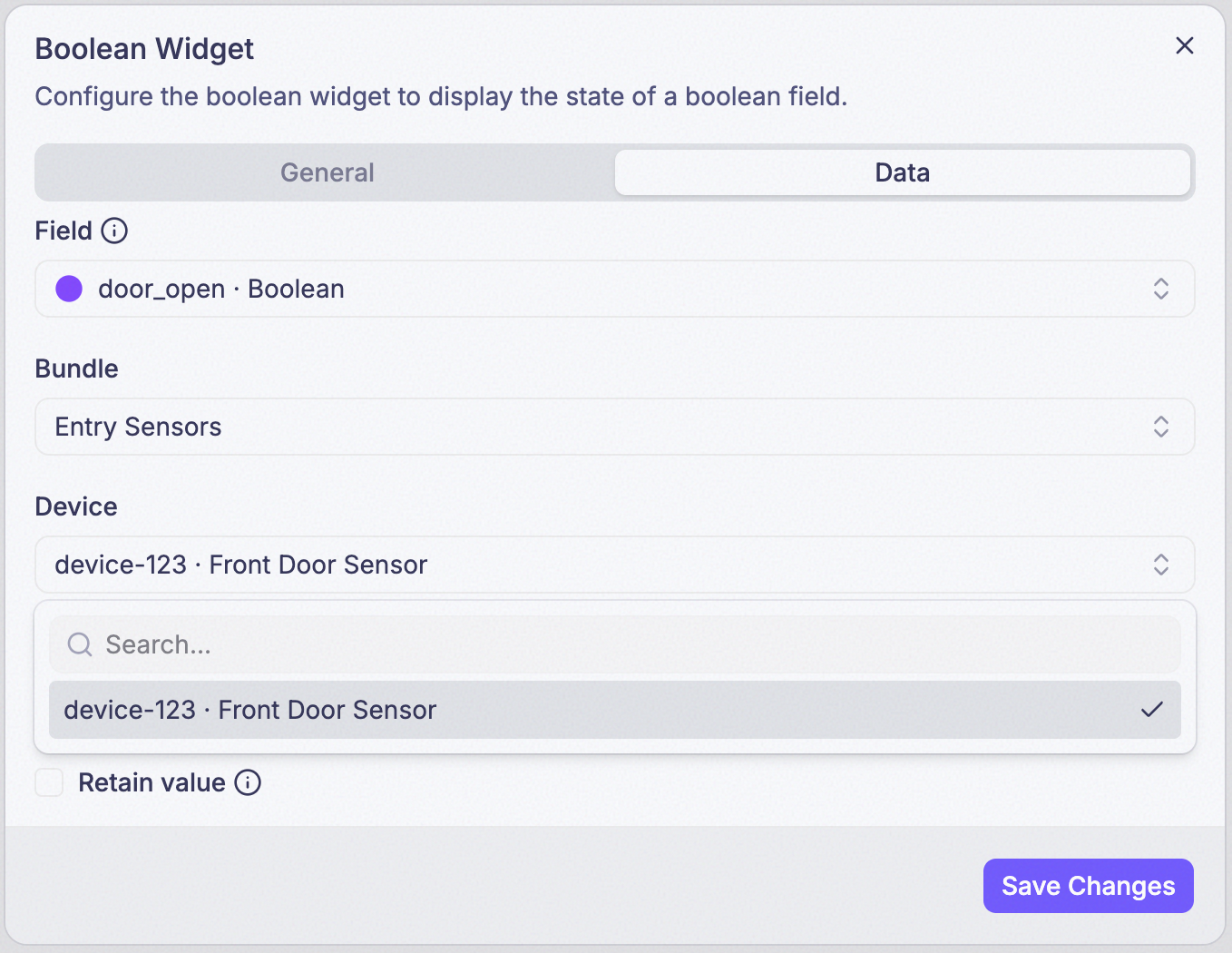
Step 4: Choose a Device (optional)
Points the widget at one specific device. Leave both Bundle and Device blank and the widget reads from any device that reports the field.
Step 5: Set On Text, Off Text, and Retain
On Text shows when the device reports true (e.g., “On”, “Active”). Off Text shows when it reports false (e.g., “Off”, “Inactive”). Retain extends the lookback window — see the callout below.
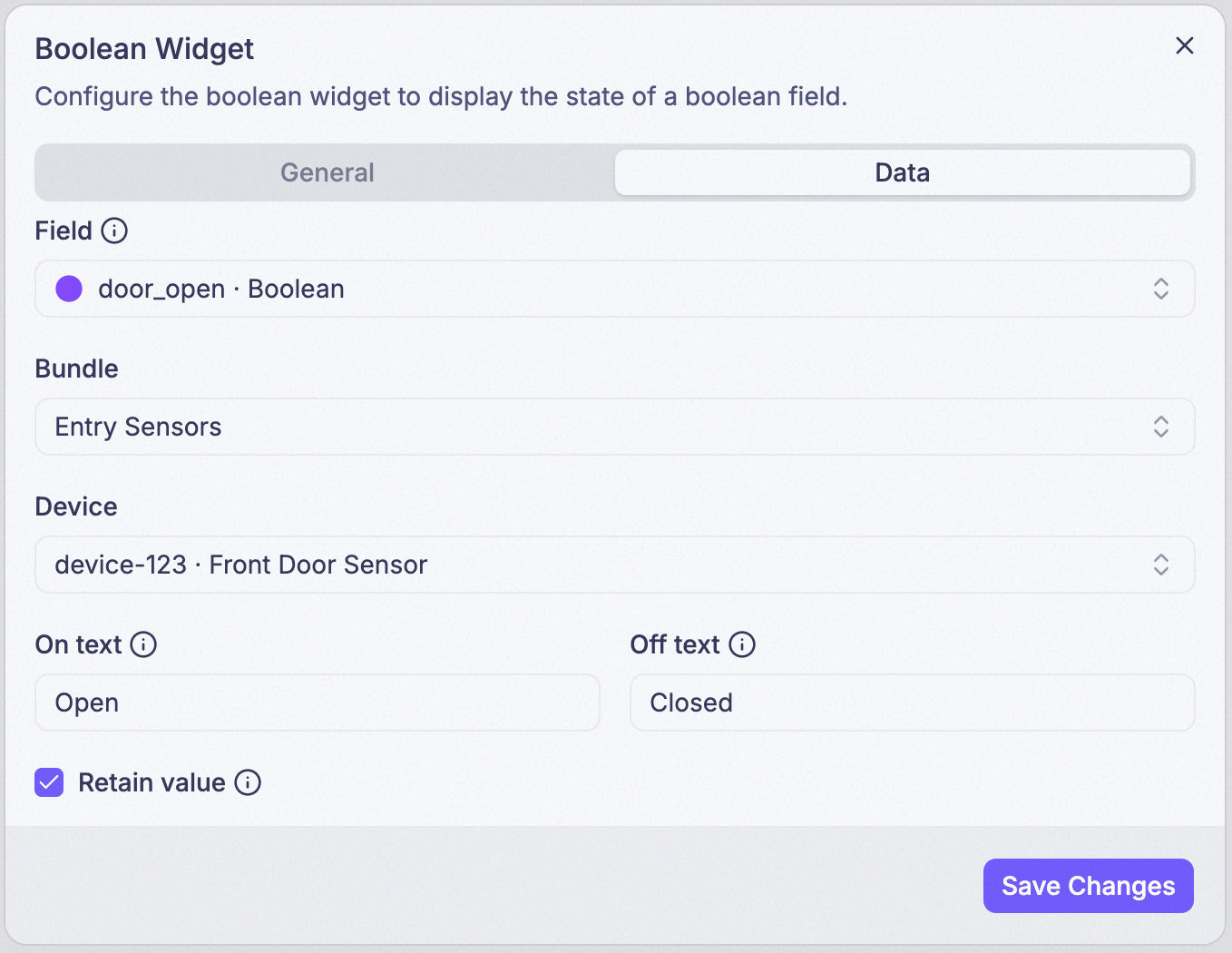
There’s no Aggregate or Time Range setting to find here — Boolean always reads the latest value, on the same 15-minute lookback (30 days with Retain on) described on the Single Value Widget page. If a switch only reports occasionally, turn Retain on.
Example