Company & Employees
The Company & Employees tab holds two cards with two different audiences. Company Information is Owner-only — an Admin does not see it disabled, they do not see it at all. The Employees list is open to Owners and Admins.
Like the rest of Settings, this tab is not available to employees with the User role. See Who can do what for the full breakdown.
Company information
One form, one save button. Change any of the three fields and click Update Information to apply them together.
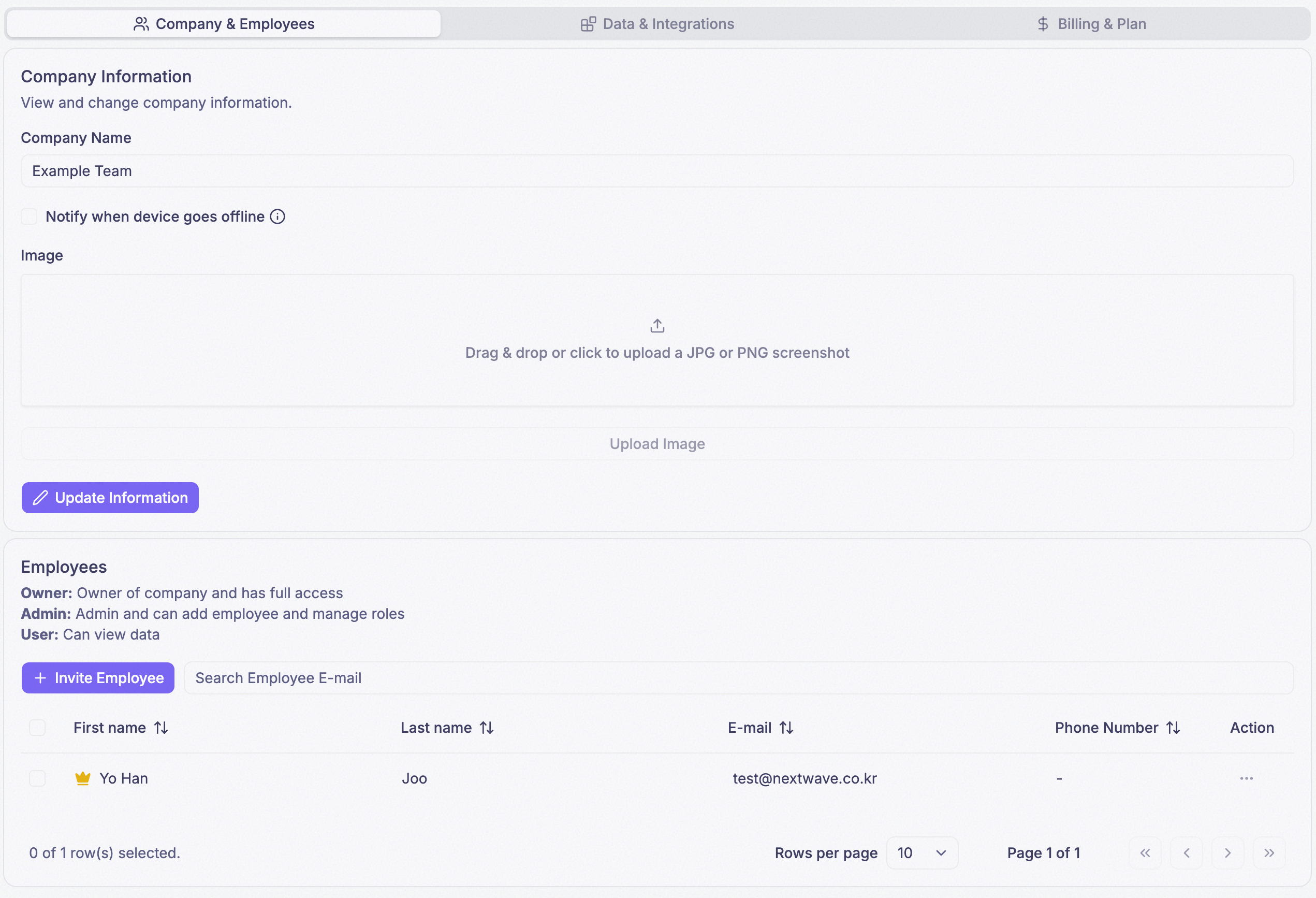
- Company Name — what your company is called throughout PRIZM Cloud.
- Notify when device goes offline — when this is on, PRIZM Cloud emails the company Owner and posts a company-wide in-app notification every time a device goes offline. This is the only fleet-wide offline notification in the product, and it is off by default.
- Image — drag a JPG or PNG onto the drop zone, or click it to browse, then click Upload Image. Once one is set, the field shows the stored image and Clear removes it.
The offline notifier emails the Owner and posts an in-app notification visible to everyone in the company — it fires on nothing except a device going offline. For anything conditional — a temperature threshold, a value that stops changing — use an alert, which can send SMS, email, or an in-app notification to whoever you choose.
Invite an employee
Click Invite Employee
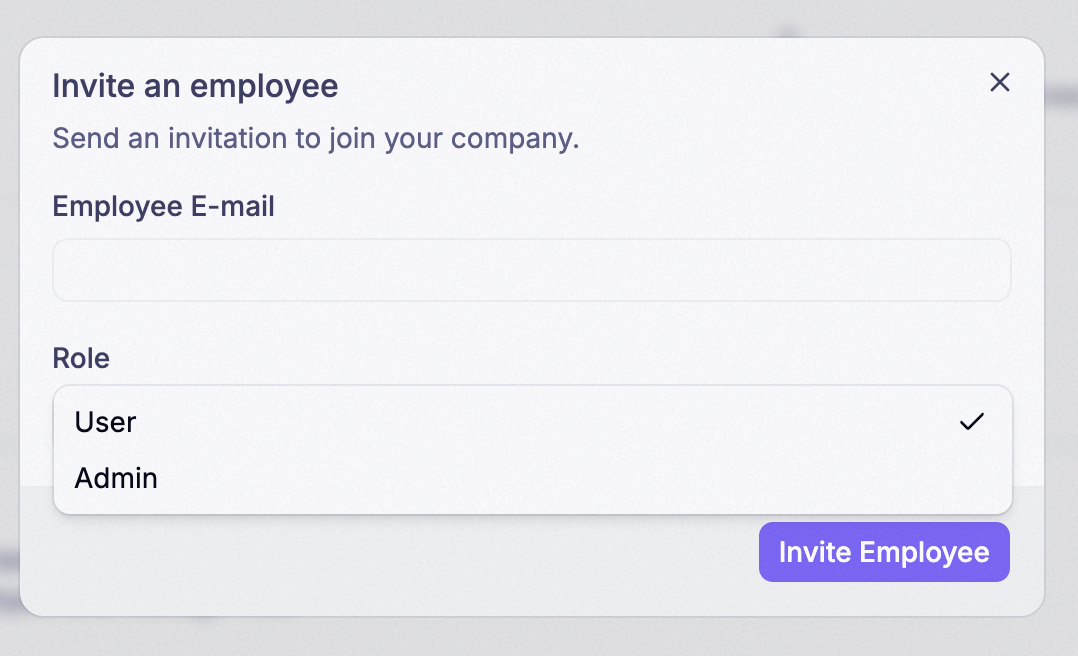
Enter their email address and pick a role
The role select offers User and Admin. There is no Owner option — you cannot invite someone as an Owner. Promote them after they accept.
Click Invite Employee
They receive an invitation and appear under pending invitations until they accept.
Pending invitations
Anyone you have invited who has not accepted yet appears in a collapsible list above the employee table, labelled with the number outstanding. The list is not shown at all when there is nothing pending, and it is hidden from Users.

Each row shows the address, the role it was invited with, and a Revoke button.
Revoking an invitation locks that address out of a new one for up to 30 minutes. If you revoke an invite and immediately re-send it to the same person, it will not go through. Wait it out.
A company can have at most 10 pending invitations at a time, and invitation links expire after 24 hours.
Change someone’s role
Open the Action menu on their row in the employee table and pick Owner, Admin, or User. The change is immediate.
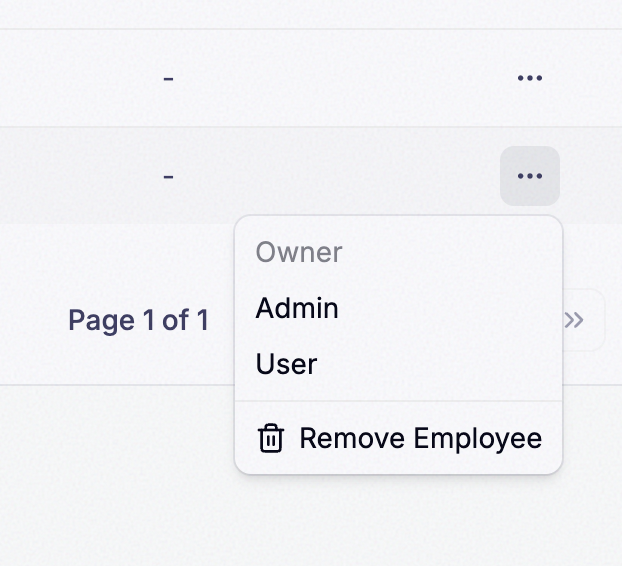
Setting someone to Owner transfers the company to them. A company has one Owner at a time, so the same action demotes you to Admin: you keep managing employees, devices, and blueprints, but you lose billing and you stop being able to see the company’s name and image. You cannot undo it — only an Owner can transfer ownership, and you are no longer one. The new Owner has to hand it back.
Only an Owner can transfer ownership; an Admin’s menu has the Owner option disabled. An Admin also cannot demote an existing Owner.
You cannot act on your own row at all — the Action menu is disabled for the account you are signed in as, so you can neither change your own role nor remove yourself. To leave a company, use Leave Company from the company’s menu on the company selection page instead.
Leave a company
Any employee can leave a company from the company’s menu on the company selection page. You lose access immediately and need a new invitation to rejoin.
- If you are the Owner and other employees remain, the button reads Leave Company. When you leave, one of the remaining employees is chosen at random as the new Owner. You do not pick who. If you want a specific person to take over, transfer ownership to them first.
- If you are the Owner and the only employee, the button reads Delete Company. This permanently removes the company and all of its data and cannot be undone. You must type the company’s name and confirm before it goes through.
Remove an employee
The same Action menu ends in Remove Employee. Removing someone revokes their access to the company immediately. It does not delete anything they created — devices, bundles, blueprints, and dashboards all belong to the company, not to the person who made them.
Who can manage employees
Inviting, revoking, changing roles, and removing all require the Owner or Admin role. Transferring ownership is Owner-only, and so is changing the company’s name or image. Employees with the User role cannot reach this tab. Full table: Who can do what.