Profile Settings
Profile Settings holds information about you, not your company. It belongs to your account, so it is the same in every company you are a member of, and every role — Owner, Admin, and User — can open it. This is different from Settings, which manages the company and is only available to Owners and Admins.
Open Profile Settings
There are two ways in:
-
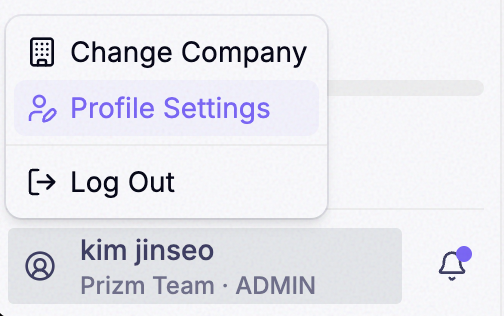
Inside a company — click the profile button at the bottom left of the sidebar, then choose Profile Settings.
-
From the company list — on the Select company screen, click the profile button at the top right, next to your name, then choose Profile Settings.

Both menus offer the same three choices: Change Company, Profile Settings, and Log Out.
General
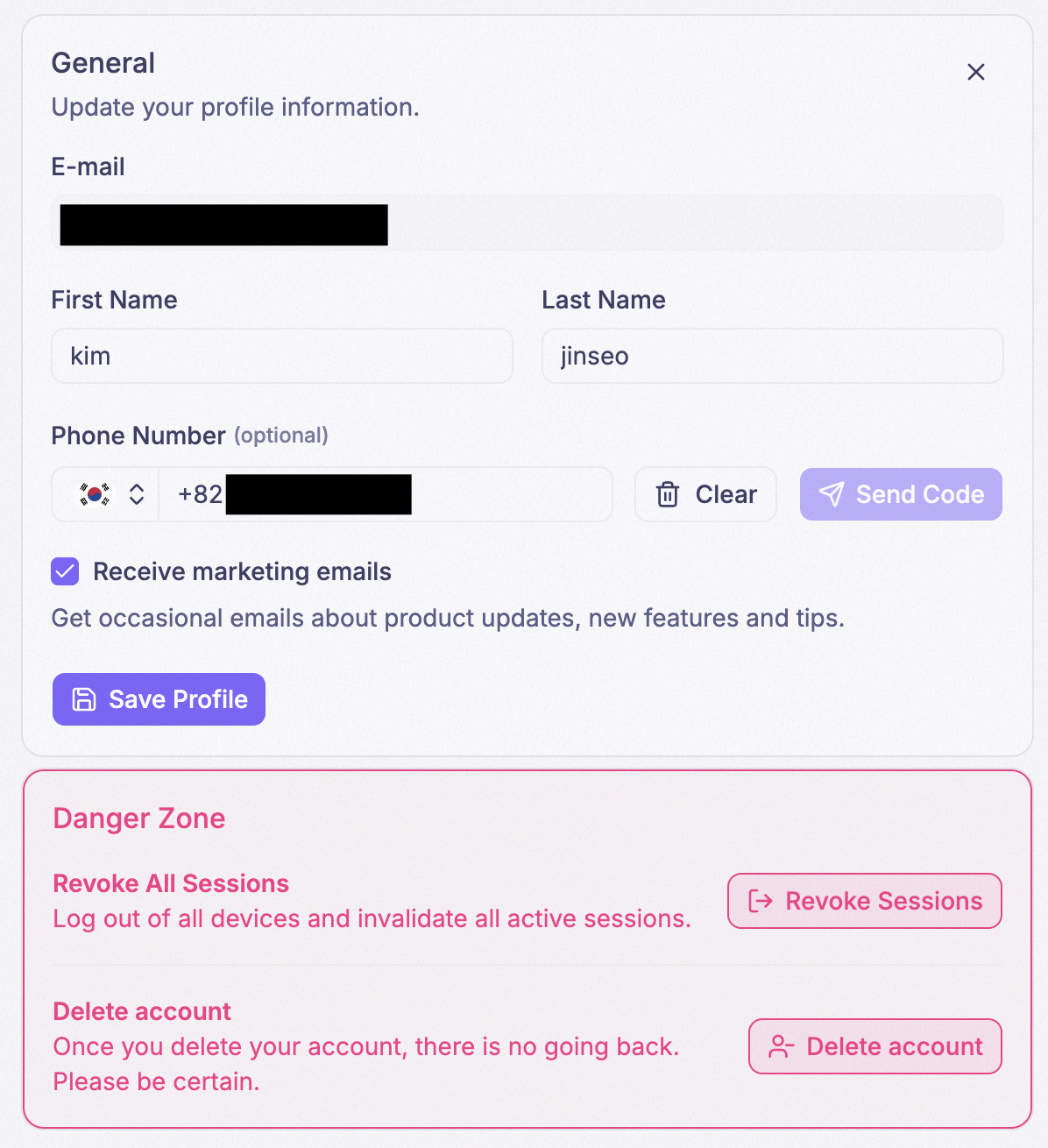
Change any of the fields and click Save Profile to apply them together.
- E-mail — the address you sign in with. It is shown for reference and cannot be edited here.
- First Name and Last Name — how you are identified to the rest of your company.
- Phone Number (optional) — see below.
- Receive marketing emails — see below.
Phone number
The phone number is optional. Pick the country from the flag selector, then enter the number.
- Send Code — sends a verification code to the number you entered.
- Clear — removes the number from your profile.
Marketing emails
When Receive marketing emails is checked, PRIZM sends you occasional emails about product updates, new features, and tips. Uncheck it and click Save Profile to opt out.
Every marketing email also includes an unsubscribe link, so you can opt out without signing in.
This setting only controls marketing emails. It does not affect emails the product sends because of something that happened in your company, such as an invitation or the offline notifier.
Danger Zone
The Danger Zone card at the bottom of Profile Settings has two actions that affect your whole account, not just one company.
- Revoke Sessions — logs you out of all devices and invalidates every active session. Use it if you signed in on a computer you no longer control.
- Delete account — permanently deletes your account. There is no going back.