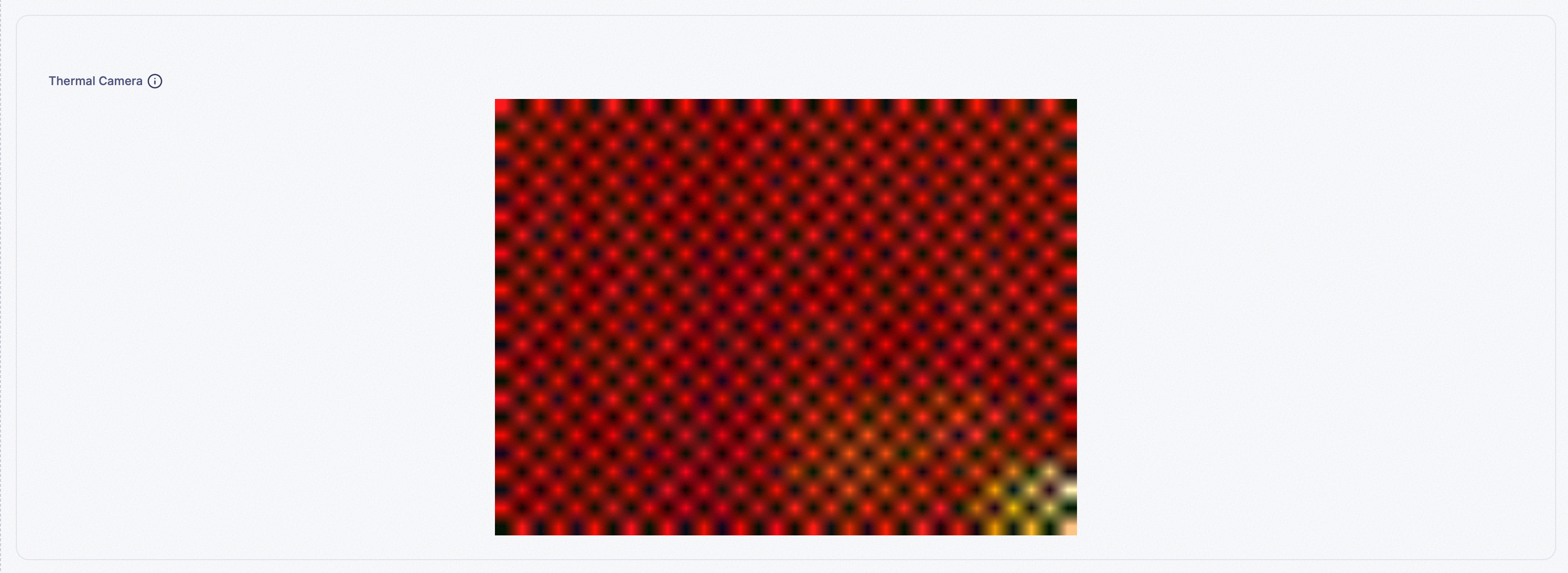
10. Image Widget
Displays the most recent image payload a device has sent — a photo, a generated diagram, a scanned document — anything transmitted as image data rather than a number. Don’t confuse it with the Image Map widget: Image Map is a picture you upload so you can pin live numeric readings onto it; this widget is the picture itself arriving from a device, with nothing pinned onto it.
- Examples:
- Displaying an updated building blueprint or architectural schematic sent by a device.
- Showing a snapshot or visual diagram generated and transmitted by a sensor system.
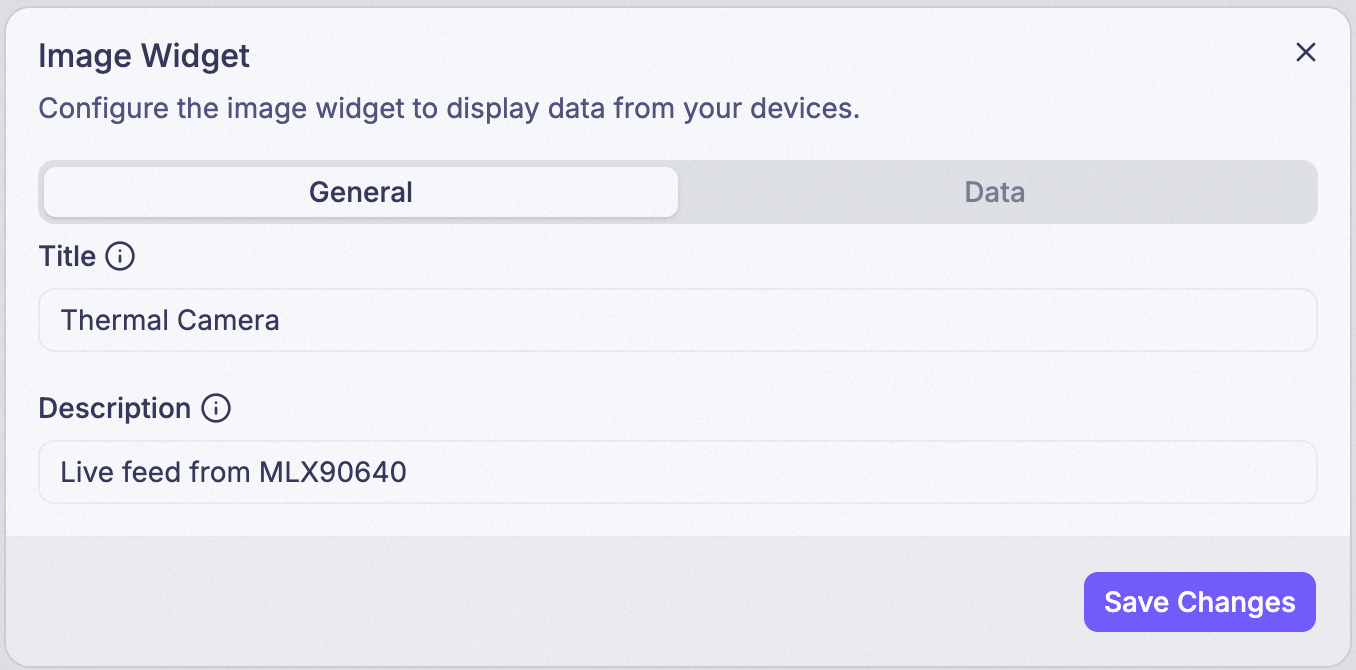
Step 1: Set Title and Description
Title is what’s actually displayed as the widget’s heading. Description isn’t shown on the card at all — it only appears in a tooltip when someone hovers the info icon (ⓘ) next to the title.
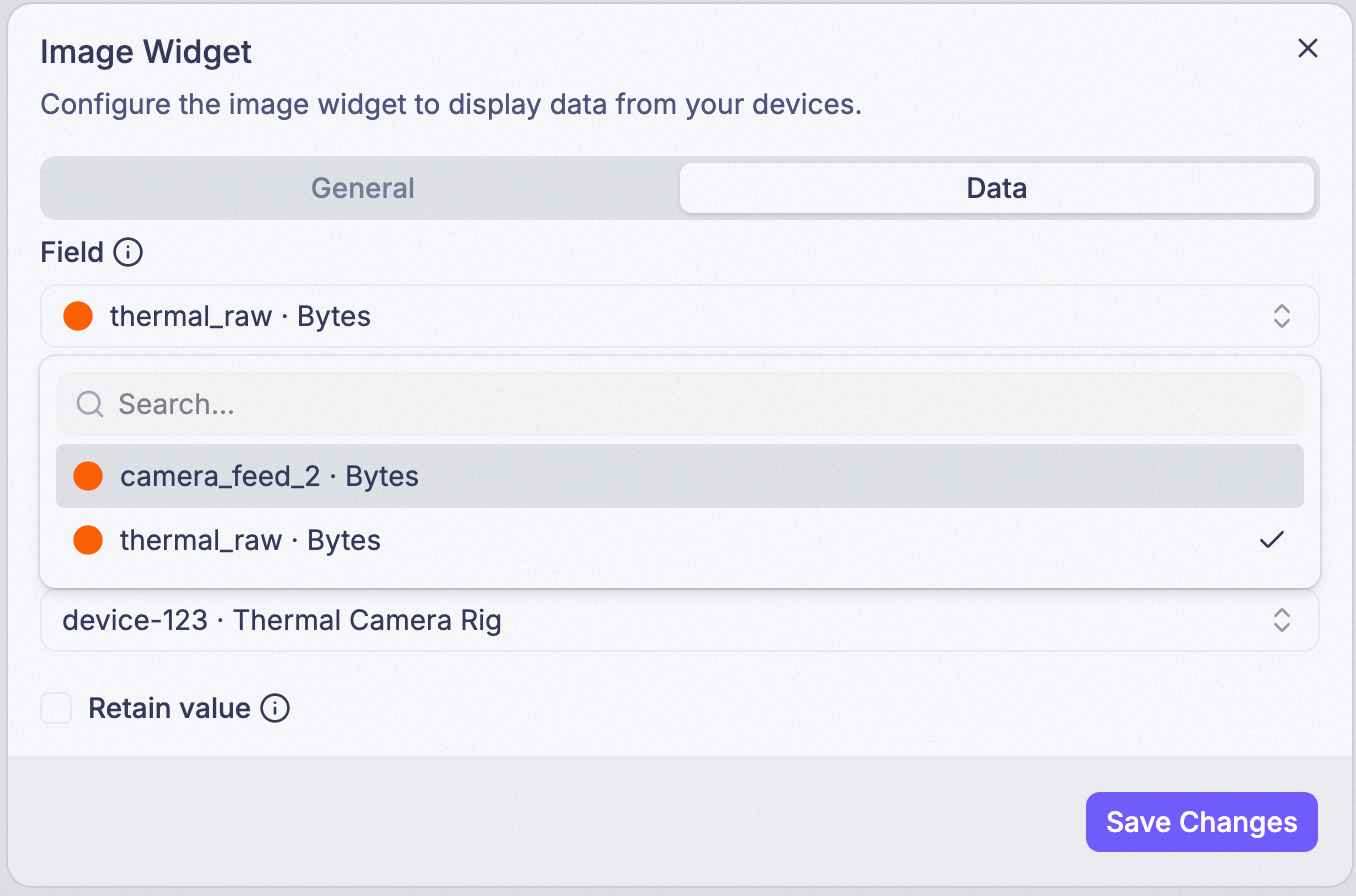
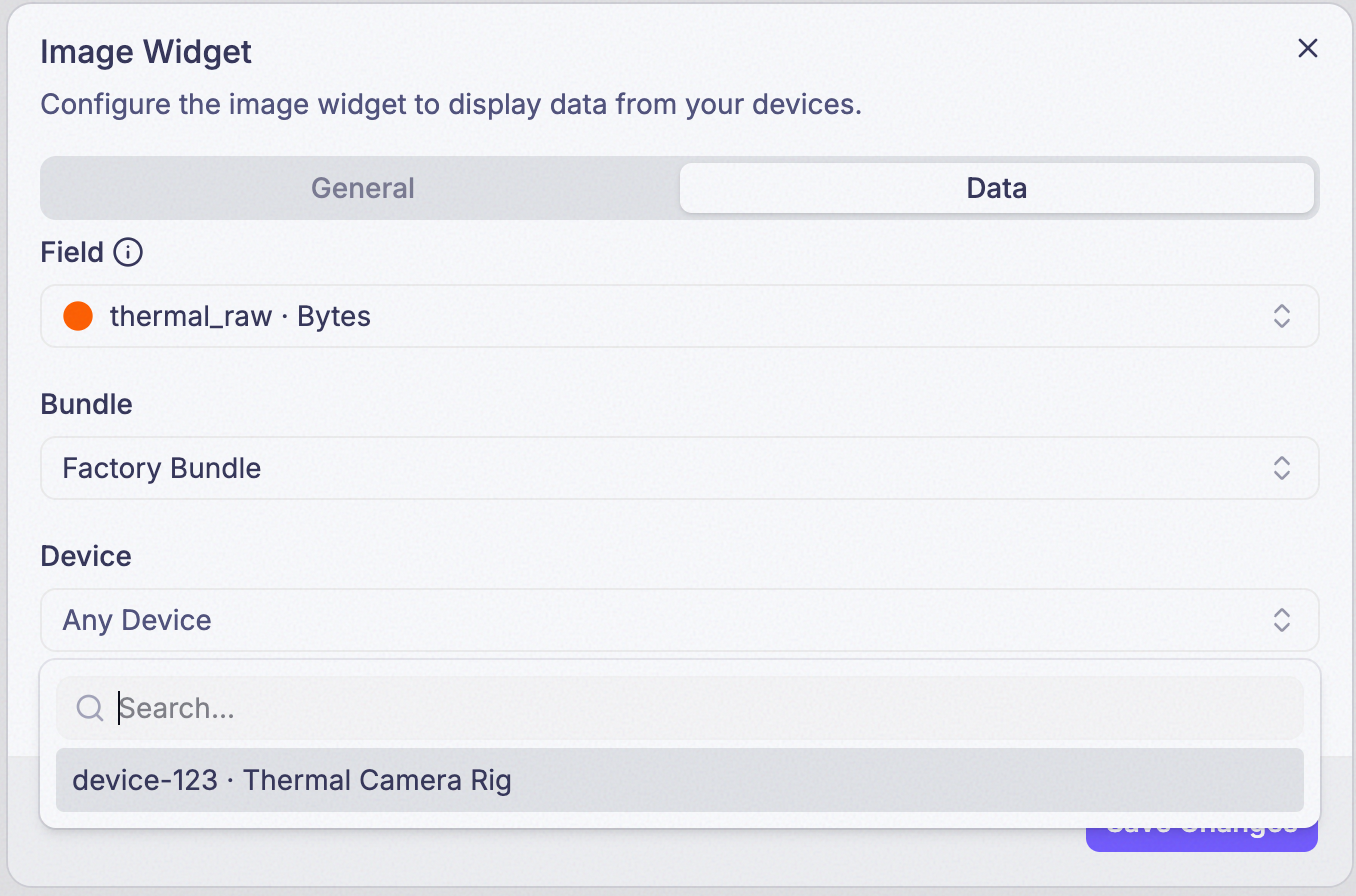
Step 2: Add the Field
Only fields carrying byte/binary data can be picked here.
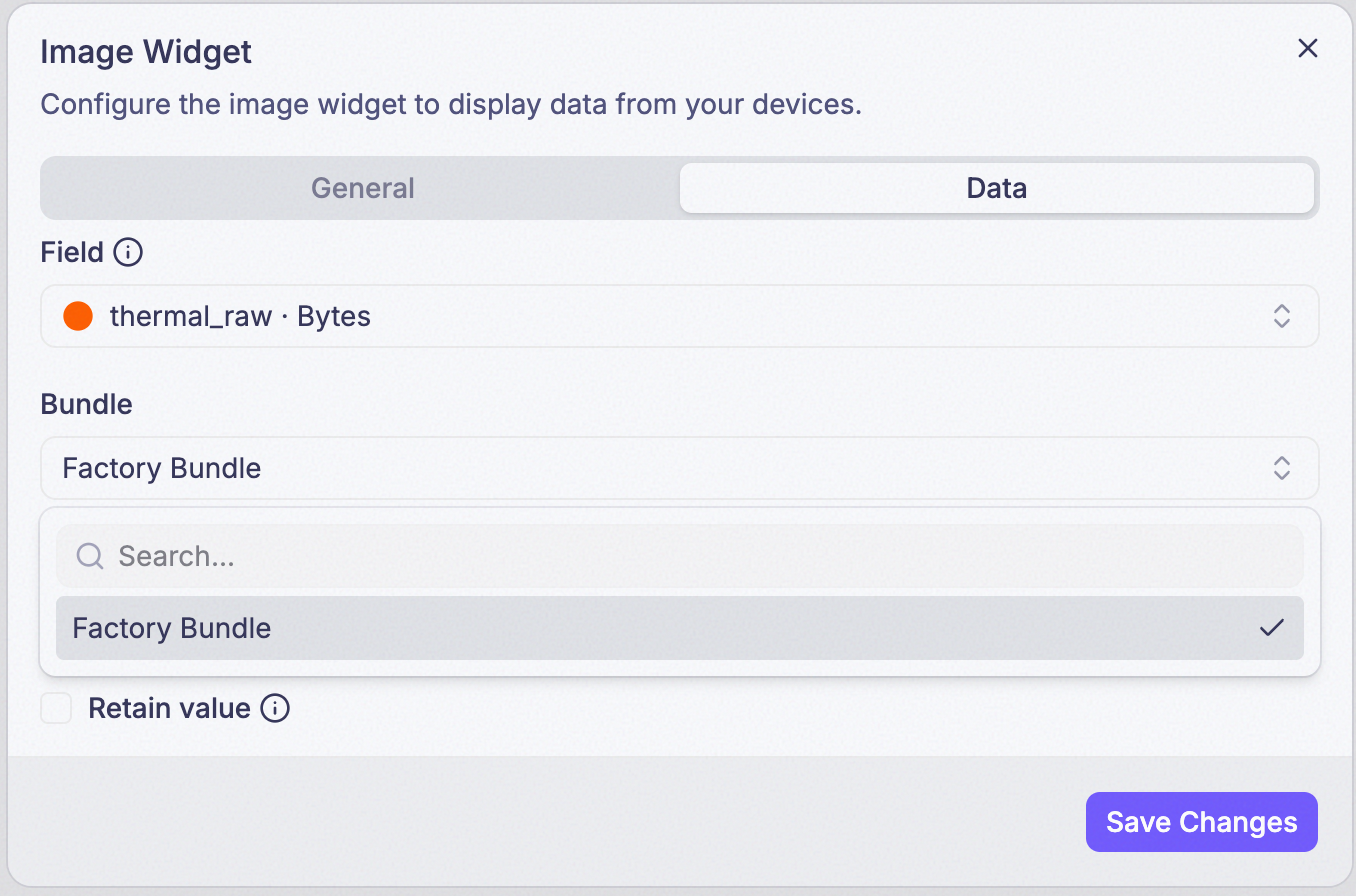
Step 3: Choose a Bundle (optional)
Points the widget at every device in a bundle instead of one device. Leave it blank to pick a single device instead, in the next step.
Step 4: Choose a Device (optional)
Points the widget at one specific device. Leave both Bundle and Device blank and the widget reads from any device that reports the field.
Step 5: Turn on Retain (optional)
Extends the lookback window — see the callout below.
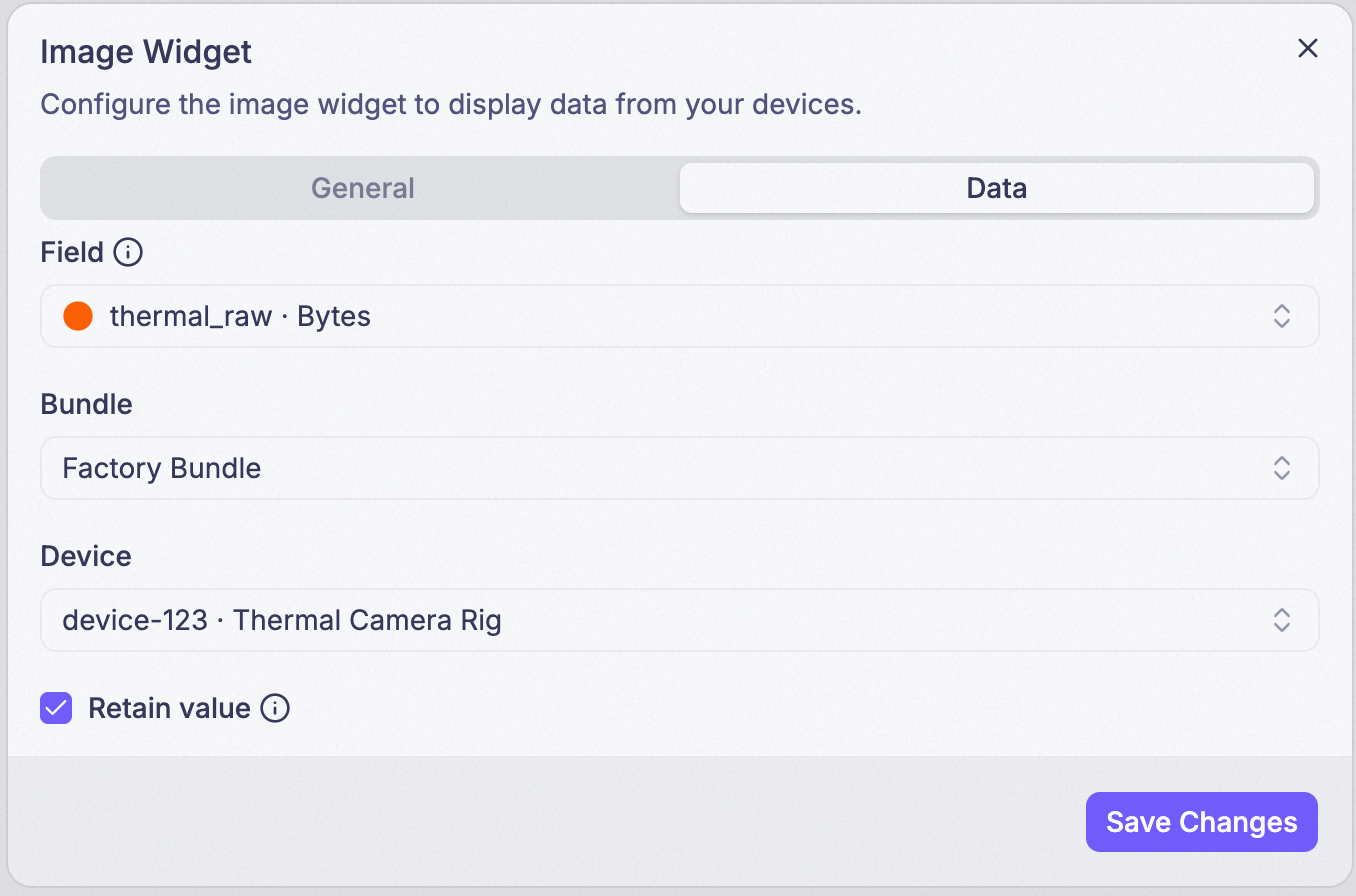
There’s no Aggregate or Time Range setting here — an image can’t be summed or averaged, and this widget always shows the single most recent image, on the same 15-minute lookback (30 days with Retain on) described on the Single Value Widget page. If a device only sends images occasionally, turn Retain on rather than looking for a Time Range field that isn’t there.
Example